Full feature list
Everything Wenbru SBMS does.
Every feature of Wenbru SBMS, in detail – for when you want the full list.
Back to Wenbru SBMSWhat it does
Quotes, job cards, equipment history and invoices for service businesses — one system for the office and the field.
- 01
Leads and enquiries
Every enquiry becomes a record in a pipeline, not an e-mail in an inbox.
- Website quote-request basket, booking form and contact form on your public site create records the office reviews and converts.
- Lead pipeline NEW → CONTACTED → QUOTED → WON / LOST with source, assigned staff member and next follow-up date.
- Technicians capture walk-in leads on the Android app; a walk-in invoice can also be saved as a lead.
- Daily follow-up digest e-mailed to each assignee when leads fall due.
- A website quote request converts to a staff quote with one action, items copied across.
- 02
Quotes and on-site signature
Quote from the office or on the customer’s premises, and get it signed there and then.
- Three-step quote builder on the app (customer → items → review) and a New Quote screen on the web, including walk-in customers.
- Prices come from the catalogue server-side; per-line and order-level discounts; VAT and totals recomputed on the server.
- Technician quotes go to PENDING APPROVAL; the owner or finance approves and sends the PDF with a 30-day signing link.
- The customer signs through the link or on the technician’s phone; signer name and date are recorded.
- Statuses DRAFT → PENDING APPROVAL → ISSUED → CLIENT SIGNED → ACCEPTED, plus DECLINED and VOID with a reason.
- 03
Job cards and work allocation
The quote becomes work, the work becomes a job card, nothing is retyped.
- A signed quote starts a job card with the quoted items copied in; job cards run DRAFT → PENDING APPROVAL → INVOICED.
- On site the technician logs a service record against each unit, adds extra items and captures the customer’s completion signature.
- Submitting a job card requires the signature; approvers are notified by push.
- Approval creates the invoice from the actual work done, with the delivery signature carried over.
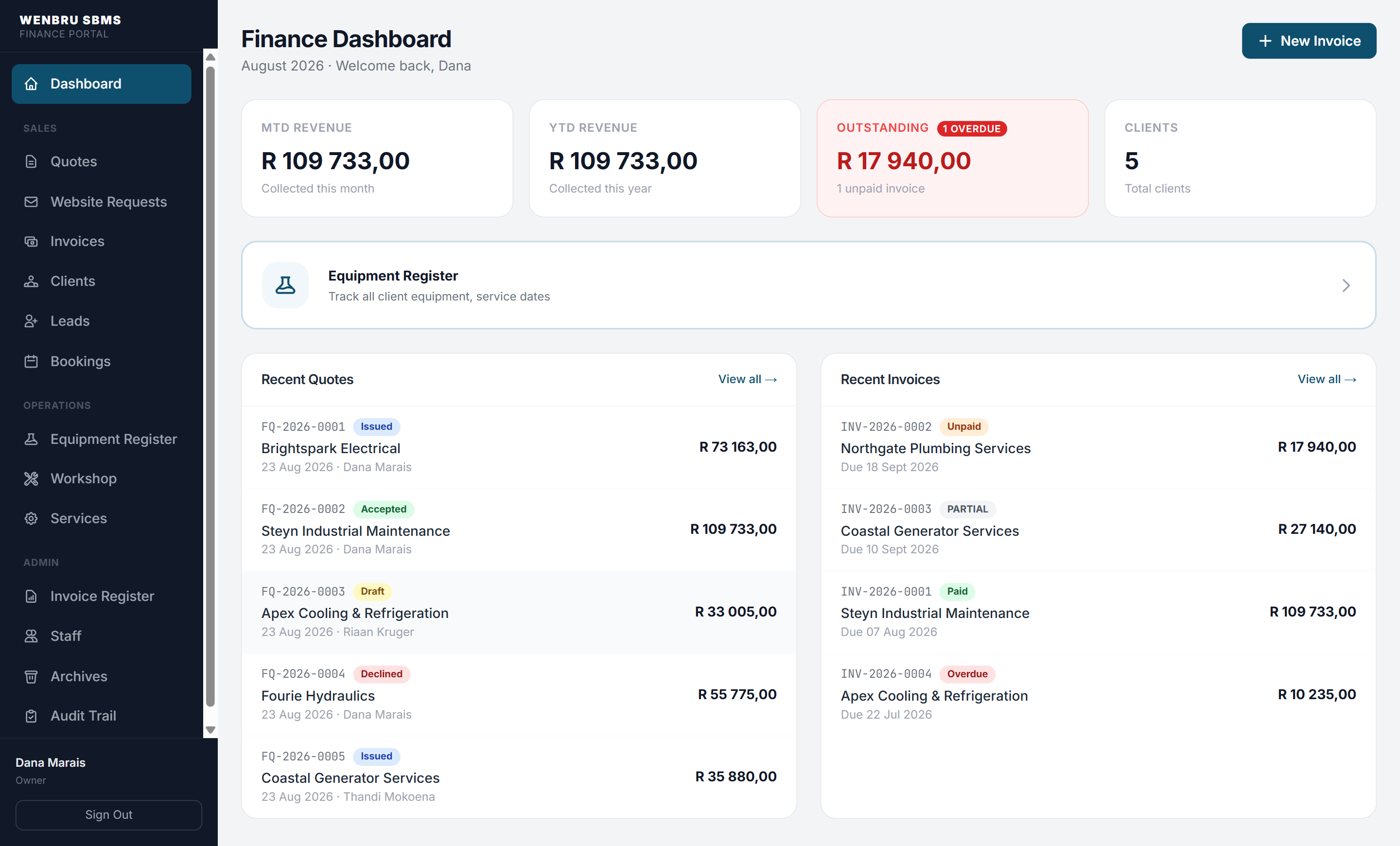
- Dashboard tiles for quotes to assign, quotes pending approval and job cards to invoice.
- 04
Invoicing and payments
Tax invoices from the job, on your letterhead, with payments and deposits tracked.
- Sequential numbering; invoices from a quote, an approved job card, a booking, or as a walk-in / cash sale.
- Payment terms on receipt or net 30 with due date, an optional deposit-required note, customer PO number and attachments.
- Send the PDF with a “confirm work completed” signing link; record full or partial payments; upload proof of payment; send reminders.
- Invoices move to OVERDUE automatically after the due date; statuses UNPAID, PARTIAL, PAID, OVERDUE, VOID.
- Client statement PDF with invoiced, paid, outstanding and overdue totals, downloadable or e-mailed.
- 05
Equipment register and service history
Know what is on every customer site and when it was last serviced, in one click.
- One record per physical unit: serial number, manufacturer, model, location on site, last and next service dates, configurable interval.
- Statuses ACTIVE, IN WORKSHOP, DECOMMISSIONED, MISSING; every status, customer or location change written to a movement log.
- Service records — inspection, refill, repair, replacement, installation — with technician, certificate number and pass/fail; logging a service rolls the next due date forward.
- Physical check with undo, replace-unit (history stays on the old record), swap with workshop stock, decommission.
- Automated service-due and overdue reminder e-mails to customers, a Monday office digest, and a per-customer equipment register PDF.
- 06
Catalogue of products and services
One price list drives the website, the quotes and the invoices.
- Simple products and variable families with variants; simple and grouped services with options.
- The sellable unit carries the authoritative price; the parent mirrors the lowest active variant automatically.
- Visibility per item: PUBLIC on the website, STAGED, INTERNAL for staff quoting only, ARCHIVED.
- Owner-managed admin for products, variants, services, options, visibility and images; every change audited.
- 07
Staff, roles and audit trail
Each person sees what their role needs, enforced on the server.
- Three working roles — OWNER, FINANCE, TECHNICIAN — with a server-enforced capability matrix.
- Owner creates staff, sets roles, deactivates accounts and resets passwords; password or role changes revoke that user’s sessions.
- Optional work-hours lockout per staff member; account lockout after repeated failed logins; self-service password reset.
- Append-only audit trail — database triggers block edits and deletes — recording who did what, from which portal, on which record.
- 08
Documents, e-mail and the field app
Documents that look like your business, and the same records on the technician’s phone.
- PDF quotation, tax invoice (legal name, VAT number, banking block, 15 % VAT, discounts, terms, signatures), client statement and equipment register — letterhead, colour and banking from your configuration, not from code.
- E-mails for quotes, invoices, reminders, service due and overdue, signature confirmations, statements and registers.
- Push notifications to the Android app: approvers on submitted quotes and job cards, staff on assignment, owners on website requests.
- The Android app: role-based home, quotes and quote builder, job cards with signature, equipment register and service log, invoices, leads, bookings — the same records as the office.
- In-app update banner when a new version is published; PDFs open from the app.
Step by step
From website enquiry to signed quote
4 steps
- 01Request
A customer builds a basket on your website and submits; they get a confirmation and the office is notified.
- 02Convert
One action turns the request into a staff quote with the items copied.
- 03Approve · send
The office adjusts lines and discounts, approves and sends the PDF with a 30-day signing link.
- 04Sign
The customer signs through the link, or the technician captures the signature on site.
From signed quote to job card to invoice
5 steps
- 01Start job card
The technician opens the signed quote on the app; the quoted items are copied in.
- 02Service
A service record against each unit of the customer’s equipment; extra items added.
- 03Sign off
The customer signs on the technician’s phone; the job card is submitted for approval.
- 04Invoice
Finance approves; the invoice is created from the actual work with the delivery signature attached.
- 05Paid
The PDF goes out with payment terms; payments and deposits are recorded against it.
Keeping the equipment register
4 steps
- 01Register
A unit installed at a site is added from the invoice, the web or the app; it receives an asset tag.
- 02Service
Each visit logs a service record; the next due date rolls forward.
- 03Remind
Thirty days before a unit falls due the customer is e-mailed; overdue units appear in the Monday digest.
- 04Swap · retire
Faulty units are swapped from workshop stock; decommissioned units keep their history.
Who sees what
- OwnerEverything: dashboard, quotes (approve, assign, convert), invoices (void), catalogue, bookings, staff, archives, audit trail; the admin area on the app.
- FinanceQuotes, approvals, invoices, payments and deposits, customers, equipment register, workshop, leads, reports and CSV export; cannot manage staff or the catalogue, cannot void invoices.
- TechnicianOwn and assigned quotes, the quote builder, job cards with signature capture, equipment service logging, lead capture — mainly from the Android app.
- CustomerNo login: browses the public catalogue, submits quote requests and bookings, signs quotes and invoices through a secure link.
Talk to us
Show us one job.
Send one job the way you run it today. We will show you how it runs in Wenbru.